Showing posts with label tab. Show all posts
Showing posts with label tab. Show all posts
Tuesday, November 22, 2016
Firmware Update Galaxy Tab 2 10 1 P5100 Android 4 1 2 Jelly Bean
Firmware Update Galaxy Tab 2 10 1 P5100 Android 4 1 2 Jelly Bean
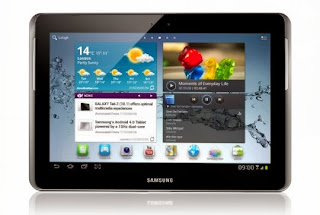
Samsung is rolling out new Jellybean firmware update to its several high-end and mid-end Smart Phones and Tablets, Now Samsung Galaxy Tab 2 10.1(P5100) gets a official Jellybean 4.2.2 BVDMF1 Firmware update. You can verify the update by visiting Settings >> About device >> Software update.
You can use Samsung Kies software to update it but sometimes it may not be available on Kies and also update may not be rolled out to some countries still now. So, Here is a manual update guide which is tested by developers and working great
Requirements
Make sure that you meet following requirements
- A PC with Windows OS
- Install Samsung USB Drivers and Kies software
- Download and install ODIN v3.07
- This update guide will only work for Samsung Galaxy Tab 2 10.1(P5100). Kindly check your device ID before proceeding.
- Backup your device data using Samsung Kies software
- Make sure that device is charged to at least 80%.
Update Galaxy Tab 2 10.1(P5100) to BVDMF1 Jellybean 4.2.2 Firmware
- Download the official update from here BVDMF1 Jellybean 4.1.2 Official Firmware - and extract it in desktop
- Turn ON USB Debugging ( Menu >> Settings >> Developer options >> USB debugging)
- Switch off your device then Press and hold
Volume Down + Home buttons + Power button. Once it gives a warning,Press Volume Downto enter debugging mode. - Start ODIN which you installed and connect your device (Galaxy Tab 2) to PC via USB.
- If you installed USB drivers correctly one of the ID:COM box in ODIN software will turn to yellow with COM port number. (see the image below)
- Now click PDA button and select the extracted file ( .tar.md5 file) which you did in step 1.
- Now make sure that options “Auto Reboot” and “F. Reset Time” is ticked in ODIN software.
- Click on START button and the process will begin.
- The device will be restarted to Recovery mode and Update process will be carried out.
- Once it is done the yellow colored ID:COM will turn Green
Thats it, You have successfully installed new Firmware. To check it go to Settings >> About Device. There you can verify the Android version number and build number there.
Troubleshooting
Occasionally the tab might not automatically restart to recovery mode as given in Step 9. In that case please carry out the process once again.
If still not fixed then do the following
- Before moving to Step 8 above make sure that “Auto Reboot” option is not checked.
- Now Start the process
- Remove the Tab battery (Yes do it)
- Replace the battery again and restart the tab by pressing
Volume Up + Home + Power buttontogether. - It will lead to Recovery mode of the tab and rooting process will automatically continue.
- Once it is done the yellow colored ID:COM will turn Green
Disclaimer
All the custom ROMs and firmwares, official software updates, tools, mods or anything mentioned in the tutorial belong to their respective owners/developers. We (gsmhoster.blogspot.com) or the developers are not to be held responsible if you damage or brick your device. So follow the tutorials at your own risk.Available link for download

Tuesday, October 18, 2016
Facebook Rolls Out Video Feeds Tab On Android and iOS
Facebook Rolls Out Video Feeds Tab On Android and iOS

The latest update of Facebook app both on Android and iOS comes with an exclusive Video bar that can rival Twitter owned Periscope and Google owned YouTube
The Video hub heavily features Facebook’s Live broadcasts, and will roll out on iOS and Android in the coming weeks alongside a slew of Live upgrades including:
• Payments to select news publisher partners in exchange for broadcasting on Live instead of their own sites
• Live videos in Groups like your family or people with a specific interest
• Live videos in Events so you can schedule a Q&A or show off a party to invitees who couldn’t come
• Comment Replays that simulate how feedback popped up during Live viewing
• Topic tagging to place your Live video in the right discovery category in the video hub
• Facebook’s six Reaction emojis that fly across the screen visible to viewers and broadcasters, similar to Periscope’s hearts
• Five color filters that can be changed on the fly to improve lighting without equipment
• Viral invites so viewers can notify friends to join the audience
• A Live Map of current broadcasts around the world (Currently on the web only)
• Snapchat-style doodling so broadcasters can draw atop their Live videos (announced but not launching yet)
• Live video audience metrics including the total unique people who watched a video while it was live, and a chart showing how many Live viewers the video at any given moment.


Available link for download
Subscribe to:
Posts (Atom)